Two ways
| Method | What it does | Visible difference | Typical saving |
|---|---|---|---|
| Re-compress | Keeps the resolution, lowers JPEG quality, saves again | Essentially none on a screen | Usually 30-50% |
| Downscale | Caps the long edge, then saves again | Shows up when you zoom in hard or print | More |
For most pictures re-compressing is enough. Phone cameras save at a very high quality setting, so dropping it a little is invisible in normal viewing. Reducing resolution is better kept for photos you will never print or crop into.
Both are permanent. The file is overwritten in place, so the previous version does not even reach the trash. Doing it twice to the same photo stacks the losses, so do not repeat it.
Do the capture details survive?
A photo file carries more than the image: it carries capture data (EXIF). Plenty of tools throw all of it away when they re-save. Lose the date and the photo jumps to the top of your gallery as if taken today; lose the orientation flag and portrait shots lie on their side.
| Detail | What it preserves when carried over |
|---|---|
| Capture date and time | Your gallery keeps sorting it correctly |
| Orientation | Portrait photos do not end up sideways |
| Location (GPS) | Map and place features keep working |
| Camera, lens, exposure | A record of how the shot was taken |
| Album (folder) and filename | Unchanged when the file is overwritten in place |
When you choose a tool, check that it copies these across. Orientation and date are the two that wreck a gallery when they go missing.
When to use it, when not to
- Good candidates: large everyday photos, food and scenery, anything you want to keep but will never print.
- Leave alone: photos for printing or framing, anything you will crop in hard later, documentation for work, and anything already shrunk once.
- Delete instead: blurry frames and burst leftovers. Shrinking those is effort for nothing — removing them frees more.
In PhotoSweep
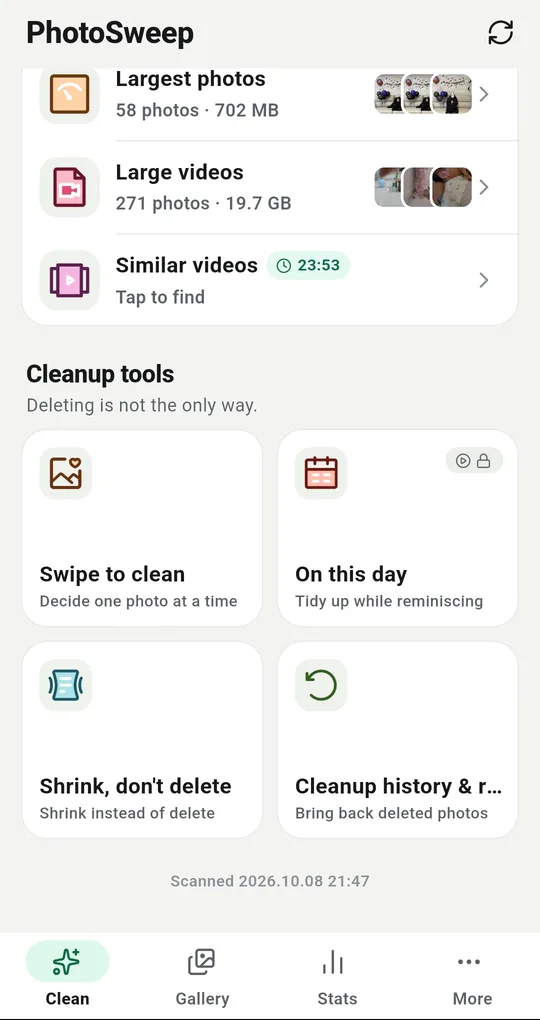
Shrink, don’t delete
Open Shrink, don’t delete from the Cleanup tools in the More tab. It works on JPEG photos over 3 MB, biggest first, and skips favorites and locked albums entirely. Because it rewrites files in place, it needs Android 11 or later.
Pick a compression level
High quality and Balanced leave the resolution alone and only lower the quality; Small also caps the long edge at 4032 pixels. Balanced suits most photos and usually saves 30-50%. Choose how many to do and the estimated saving appears before you commit.
One more confirmation before it runs
Android asks separately for permission to modify the files. Capture date, orientation, location and camera details are copied onto the new file, and any photo that would not shrink by at least 10% is skipped untouched. Originals are overwritten and cannot be restored, so try a handful first and look at the result.
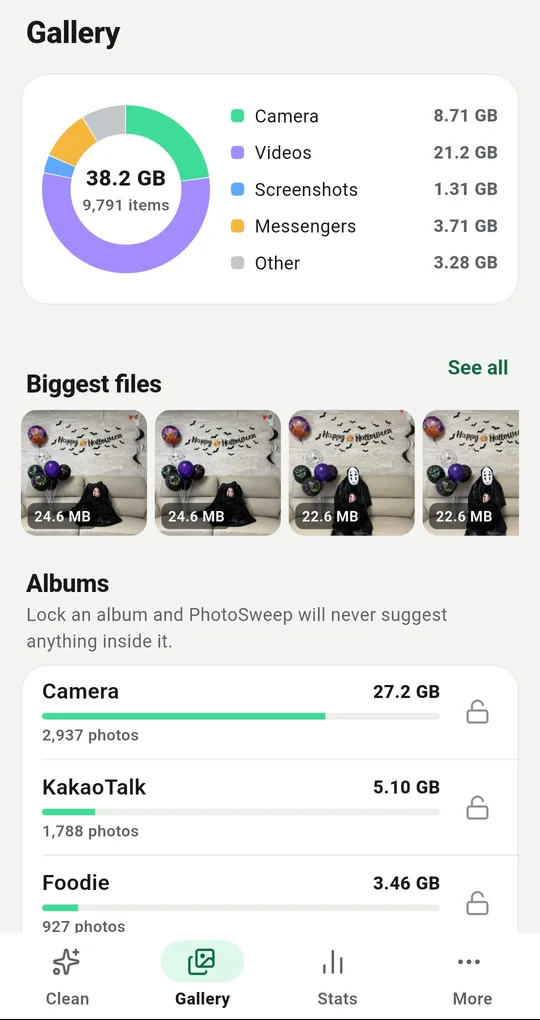
Decide what is worth shrinking
Check the biggest files on the Gallery tab first. If videos dominate, clearing videos is faster than shrinking; if large photos dominate, shrinking is the efficient move.
FAQ
Can I get the original back?
No. The file is overwritten in place, so nothing goes to the trash. Copy anything irreplaceable elsewhere, or confirm your backup, before you shrink it.
What about PNG or HEIC?
PhotoSweep shrinks JPEG only. Changing the format would leave the filename describing something the file no longer is, which breaks other apps.
Can it compress videos?
No. Videos are in a different league for size, so clearing the ones you do not need from Large videos is the better move.
PhotoSweep: Duplicate Cleaner
One photo in every group always stays. An Android photo cleaner that keeps every bit of analysis on your device.