Why 128 GB was never 128 GB
A brand new phone already has less free space than the box says, for two reasons.
- Two different gigabytes. Manufacturers count a gigabyte as a billion bytes; the phone counts it as 1,073,741,824. A 128 GB drive therefore shows up as roughly 119 GB. The bigger the drive, the bigger the gap.
- The system takes its share. Android itself, the preinstalled apps and the space held back for updates can account for several gigabytes or more. That is the System row on the storage screen.
Neither can be cleared. Start your arithmetic after them and the numbers stop looking absurd.
The things that are not photos
| What | Why it grows | What to do |
|---|---|---|
| App caches and data | Messaging, social, map and music apps pre-download a lot | Open the app in Settings and clear the cache. Your content stays |
| Chat media | Pictures and clips inside a messaging app, separate from the gallery | Use the app’s own storage management screen |
| Videos | Hundreds of times a photo. A handful can be gigabytes | Review the biggest ones first |
| The Download folder | Installers, attachments, documents | Sort it by size in the file manager |
| The trash | Deleted photos that are not gone yet | Empty it once you are sure |
| Offline downloads | Music, shows and maps saved for offline use | Trim the offline list in each app |
The order to check
- Open the storage screen in Settings. The bar split into photos, videos, apps, documents and system is your starting point.
- Work down from the largest item. If apps are the biggest, find out which app and whether it is cache or data.
- Look at videos separately. One clip is worth hundreds of photos.
- Check the trash. It is the most common reason deleting changed nothing.
- Whatever is still unexplained is usually the system share and the gigabyte mismatch.
Images your gallery never shows
A gallery app does not list every image file on the phone. A folder containing an empty file called .nomedia is hidden from the gallery entirely, and images inside an app’s private area (under Android/data) never appear there at all. Most of what a messaging app shows you inside a chat lives in exactly that place.
So the gallery total and the Settings photo total not matching is normal. A cleaner app can only work with what is registered in the media library, which is why chat media has to be cleared from inside that app.
In PhotoSweep
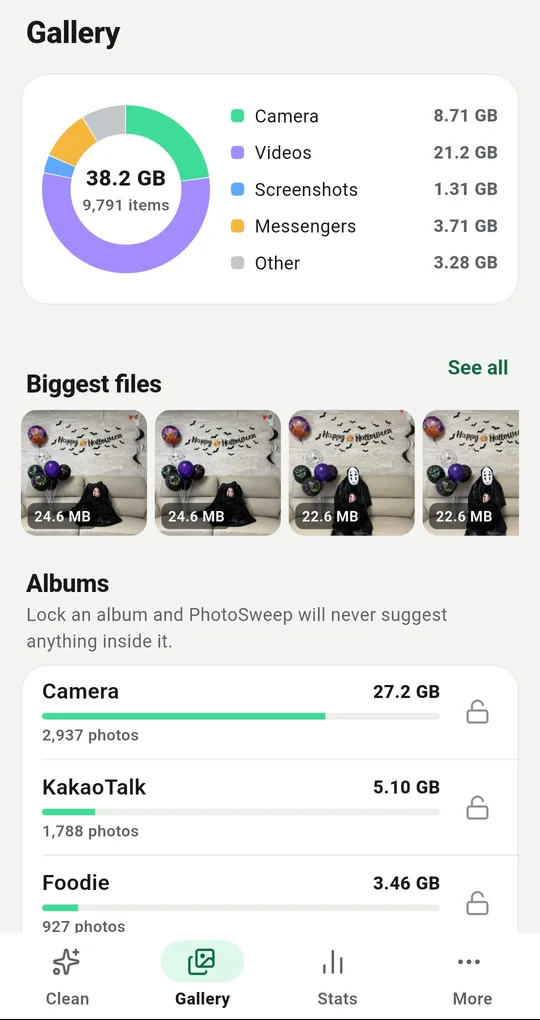
See what your photos actually weigh
The donut on the Gallery tab splits your whole library into camera, videos, screenshots, messengers and other. If the photo share is smaller than you assumed, the culprit is elsewhere. The album list underneath is sorted by size, so the heaviest folder is obvious.
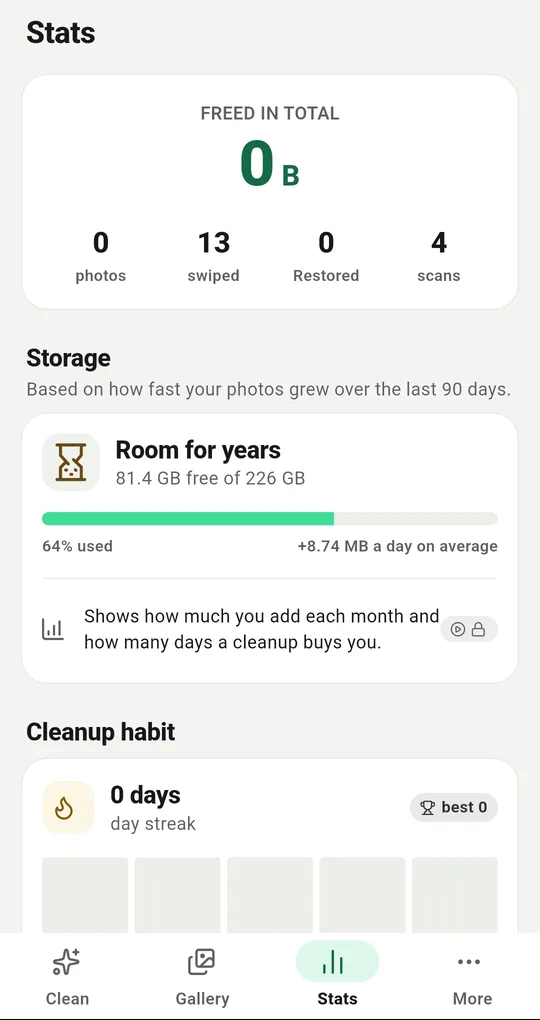
Free space and how fast it is going
The Storage card on the Stats tab shows what is left and projects it from how fast your photos grew over the last 90 days, including the average added per day. That tells you whether you need one big clean-out or a change of habit.
Start with the videos
The Taking up the most space section on the home screen lists Largest photos and Large videos, biggest first. These are files only you can judge, so nothing is selected when you open them. Clearing a few moves the number noticeably.
FAQ
I deleted photos and the free space did not change.
They are sitting in the trash. Space is not released until they are permanently deleted. Empty it if you are in a hurry, or wait out the grace period.
Does clearing the cache delete my messages?
Clearing the cache only removes temporary files that can be fetched again. Clearing app data is a different button: that signs you out and can lose anything not backed up.
Should I move everything to an SD card?
It works well for photos and videos. But a card can fail or be removed, and on some devices the trash does not apply to it, so back up before you move anything important.
PhotoSweep: Duplicate Cleaner
One photo in every group always stays. An Android photo cleaner that keeps every bit of analysis on your device.