There is more than one trash
A deleted photo can land in three different places.
- The Android system trash, added in Android 11. Any app — a gallery or a cleaner — can ask the system to move photos there, and the system shows its own confirmation dialog before it happens.
- A gallery app’s own trash. Samsung Gallery calls it the Recycle bin and keeps items for 30 days, but it only works if Recycle bin is switched on in Gallery settings beforehand.
- A cloud trash. Google Photos keeps deleted items in its trash for 30 days before they are permanently deleted. The Files by Google trash is also 30 days.
If a photo exists on the phone and in the cloud, there are two trashes holding it. Emptying one does nothing to the other.
The Android system trash
From Android 11, an app can ask the system to move photos to the trash rather than deleting them itself. The dialog you see is drawn by Android, not by the app, so nothing moves unless you tap it yourself.
Items in the trash are permanently deleted after a period the system defines. The Android documentation deliberately does not give a number; in practice most apps and services tell you 30 days. Treat it as a short grace period rather than a guarantee, and restore anything you want back sooner rather than later.
Android 10 and earlier have no such place. Deletion is immediate, which is why a careful cleaner always asks once more on those devices.
It depends where you deleted it
| Deleted in | Where it goes | Where to get it back |
|---|---|---|
| Gallery app, recycle bin on | That app’s bin | The bin inside the gallery app |
| Gallery app, recycle bin off | Deleted immediately | Nowhere |
| A cleaner app, Android 11+ | System trash | The app’s own history screen, or the gallery bin |
| A cleaner app, Android 10 or older | Deleted immediately | Nowhere |
| Google Photos app | Photos trash, 30 days | The Photos trash. Backed-up items also disappear from your other devices |
| File manager | That app’s trash | The file manager’s trash |
When the trash is skipped
- Overwriting. Shrinking or editing a photo in place leaves nothing in the trash. The previous file is gone.
- Emptying the trash. That ends the grace period immediately, whatever it was.
- SD cards and external storage. Depending on the device, the trash may not apply at all.
- Photos that live only inside an app. If they never appear in your gallery, uninstalling that app takes them with it.
- A factory reset. The trash is on the phone too, so it goes as well.
In PhotoSweep
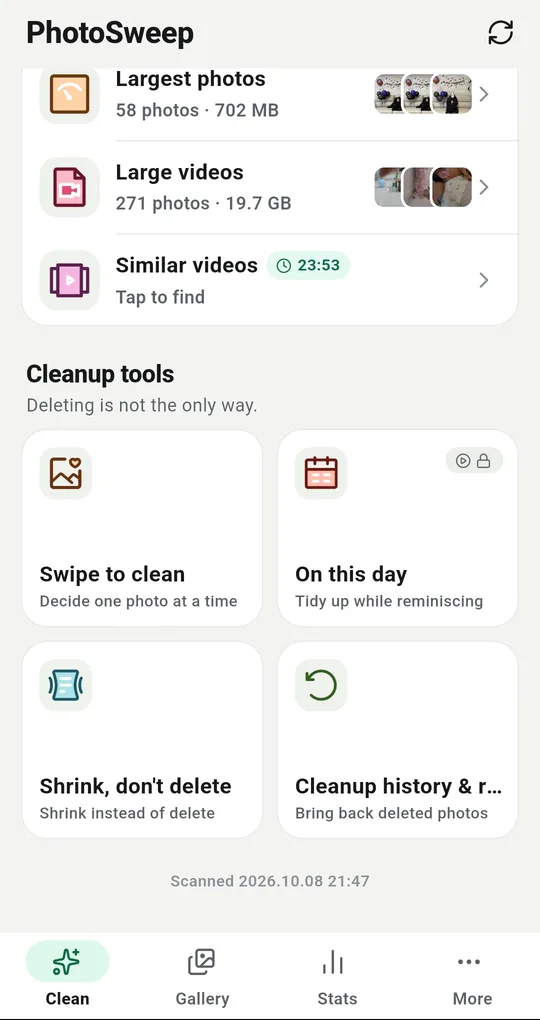
Cleanup history and restore
The More tab has a Cleanup history and restore tile. Everything PhotoSweep sent to the trash is listed with its date, size and how many days are left, and you can bring items back from there without opening a gallery app.
On a phone with no trash
On Android 10 and earlier there is no trash to use. PhotoSweep always shows the confirmation dialog on those devices regardless of your settings, warns in red that this cannot be undone, and says so again on the history screen.
Keep the confirmation on
Ask before deleting in Settings shows how many photos and how many megabytes are about to go before anything happens. Worth keeping on for large batches.
FAQ
Do photos in the trash still use storage?
Yes. Nothing is freed until they are permanently deleted. If you need the space now you have to empty the trash, and then there is no way back.
The same photo is in my gallery bin and my cloud trash.
The file on the phone and the uploaded copy were trashed separately. Restoring one does nothing for the other.
Can a recovery app find photos after the grace period?
Rarely. Since Android 10 an app cannot scan another app’s storage area, so the old approach of sweeping the whole disk no longer works, and modern devices are encrypted on top of that.
PhotoSweep: Duplicate Cleaner
One photo in every group always stays. An Android photo cleaner that keeps every bit of analysis on your device.