What’s inside the code
The common format is the one documented by the open-source ZXing barcode project:
WIFI:T:WPA;S:HomeNet;P:yourpassword;;
| Field | Meaning |
|---|---|
| T | Security: WPA, WEP, or nopass for an open network |
| S | Network name (SSID), case-sensitive |
| P | Password |
| H | true if the network is hidden |
Characters like ; : , \ in the name or password need a backslash in front. Easy to get wrong by hand, so let a generator do it.
Sharing from your phone
- Android — Settings › Network & internet › Internet › your network › Share. A QR code appears (menu names vary by brand).
- iPhone — from iOS 18, the Passwords app can show a QR code for a saved Wi-Fi network.
Both mean handing your phone around. For a rental, a shop or a guest room where the code stays on the wall, a printed code is better.
Making a printable code
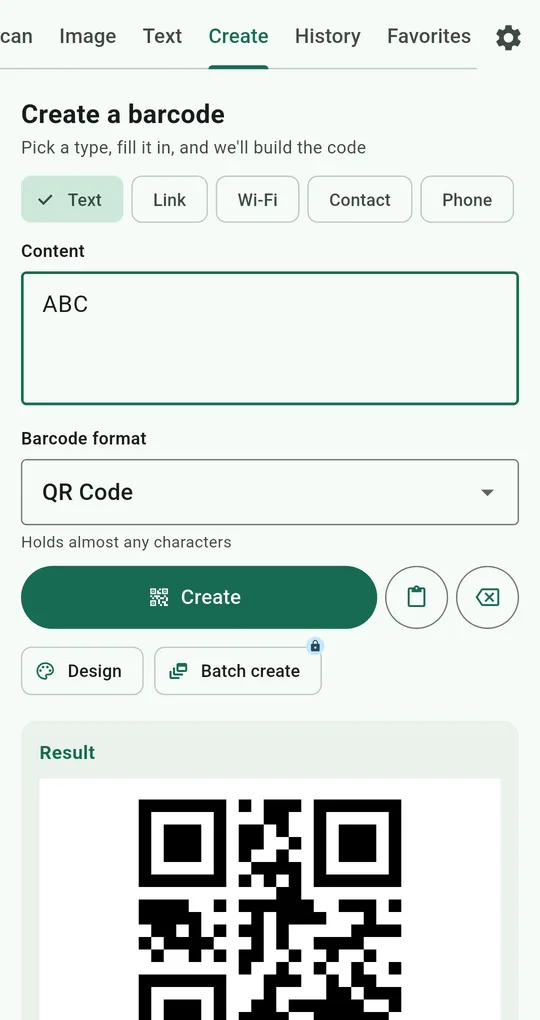
Create tab › Wi-Fi
In QR & Barcode Scanner, open Create, pick Wi-Fi, and fill in the network name (SSID), security (WPA/WPA2, WEP or No password) and the password. Switch on Hidden network if it is one. The app adds the backslash escapes for you.
Create, save, test
Tap Create, then Save to gallery. Before printing, scan it with a different phone and make sure it actually joins. For small prints, see QR print size.
What your guest sees
If a guest scans it with this app, the type shows as Wi-Fi. Connect to Wi-Fi opens the add-network screen and puts the password on the clipboard. On phones that can’t join automatically, they just paste it.
Before you print it
A code on the wall gives the password to anyone who takes a photo of it. If your router has a guest network, make the code for that and keep the main network password off paper. Change the password and you need a new code.
When it won’t connect
| Symptom | Check |
|---|---|
| “Network not found” | SSID spelling, capitals and spaces, hidden network setting |
| “Wrong password” | Typo, or the wrong security type (WPA vs WEP) |
| Only some devices fail | Whether that device supports the router’s band (2.4/5 GHz) or security mode |
| The code won’t scan | When a QR code won’t scan |
FAQ
Does making the code send my password anywhere?
This app builds the code on the device and doesn’t upload it. Anyone you send the finished image to can read the password, though.
Typing the password off the router sticker is a pain.
Take a photo of the sticker and copy the password line on the Text tab. See copying text from a photo.
QR & Barcode Scanner Reader
No sign-up, and your scans stay on your phone. Free on Android.