Back up first
Move before you delete. The other order cannot be undone.
- Confirm the cloud backup has finished — no backing-up indicator, and your latest photos visible in a browser.
- If you do not use a cloud, connect by USB and copy the whole DCIM folder to a computer. Compare the file counts afterwards.
- Take the SD card out and keep it. A factory reset does not touch what is on it.
- Chat history is separate from photos. If you need it, run each app’s own backup.
Find the risky ones
You cannot look at every photo in a large library. Start where the risk concentrates.
| What to find | Where it is | How to find it |
|---|---|---|
| ID and bank card photos | Camera folder, messaging folders | The document-style category, or by the date you took them |
| Screenshots | The screenshots album | Go through the album. Account numbers, addresses and codes hide here |
| Contracts and paperwork | Camera folder | Bright shots that are mostly text |
| Home and car photos | Camera folder | They may carry location data |
| Pictures received in chats | Messaging folders | Check album by album |
Anything you do not want to lose does not have to be deleted — back it up and clear only the device copy. The uploaded version stays.
Empty every trash
This is the step people forget. A deleted photo usually sits in a trash for around 30 days, and anyone can open that trash in the gallery app.
- Empty the gallery app’s bin.
- Empty the cloud photo service’s trash separately.
- Empty your file manager’s trash if it has one.
- If you used a cleaner, check its history screen for anything still pending.
Confirm the backup once more before you empty. From here on there is no way back.
Signing out and resetting
For a sale or a trade-in, a factory reset beats deleting photos one by one. Modern devices encrypt the whole storage, so a reset destroys the key and leaves nothing legible behind.
- Sign out of your accounts first. Resetting while still signed in can leave the phone locked for the next owner.
- Remove your screen locks and biometrics.
- Run the factory reset from Settings.
- Take out the SD card and the SIM.
For a repair a reset is usually impractical. Backing up, clearing the sensitive photos from the device and emptying the trashes is the realistic version.
In PhotoSweep
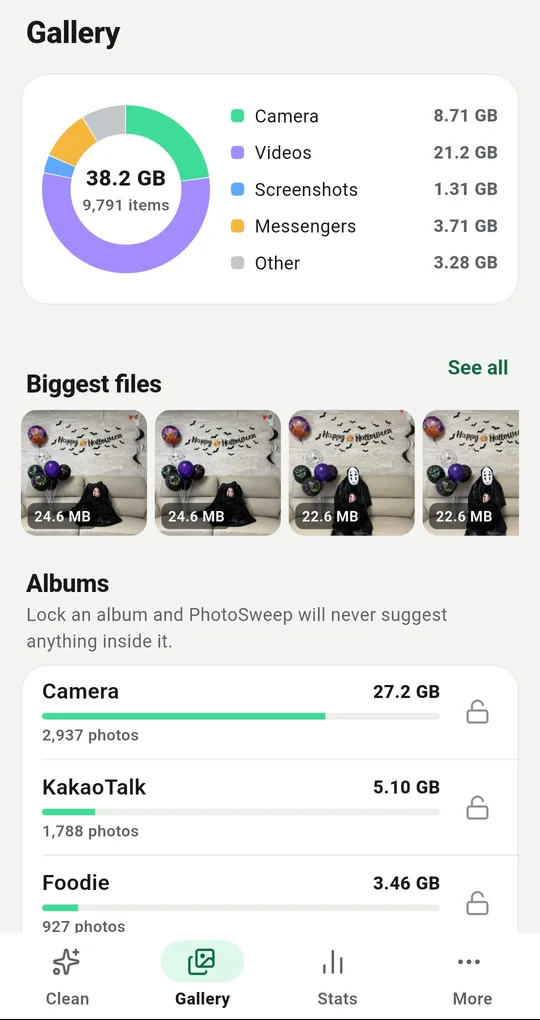
See what is in which album
The Gallery tab lists every album with its photo count and size. App folders you never think about are often several gigabytes. It is the fastest way to decide where to start looking.
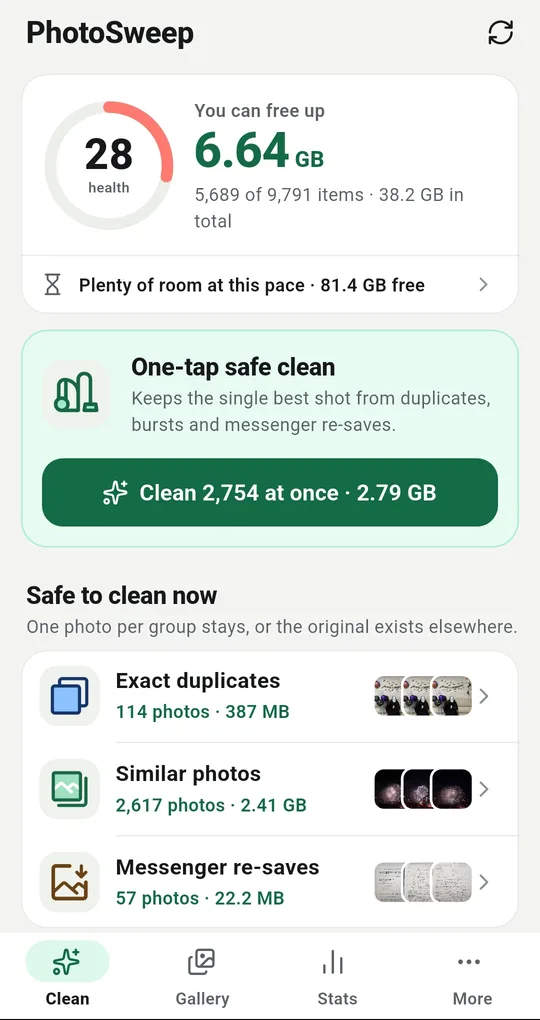
Documents and screenshots first
The Review, then clean section on the home screen has Documents and receipts and Screenshots. The first collects bright, low-colour, text-heavy photos, which is a good starting point for finding ID cards and paperwork. These are automatic judgements, so nothing is selected — look before you pick.
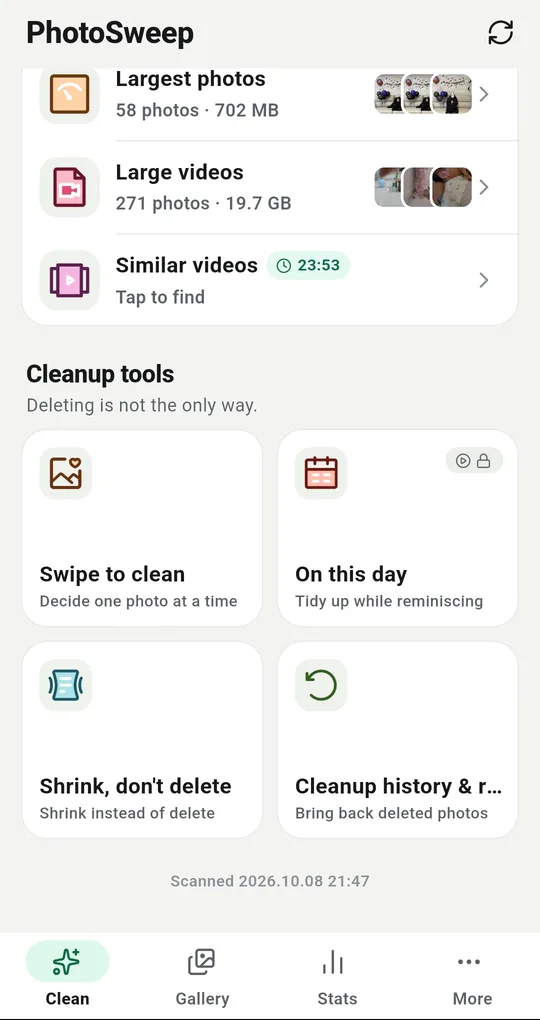
Check the trash before you hand it over
Cleanup history and restore in the More tab shows what is still sitting in the trash. If there is nothing you want back, empty the bin in your gallery app before the phone leaves your hands.
Moving to a new phone
If you are upgrading, clean before you transfer. Less to move means less time, and the useless copies do not follow you onto the new device.
FAQ
Could photos be recovered after a factory reset?
On an encrypted device the reset discards the key, which makes leftover fragments unreadable. An SD card is separate, though: format it or take it with you.
Do I have to wipe everything before a repair?
Not everything. Back up, clear the sensitive photos from the device and empty the trashes, and you have covered most of it. It is also worth asking whether the repair can be done without handing over your unlock code.
Should I delete from the cloud as well?
That is a separate question from handing over the phone. Signing out means nothing shows on that device any more. To remove the cloud copies you have to delete them on the web and empty that trash too.
PhotoSweep: Duplicate Cleaner
One photo in every group always stays. An Android photo cleaner that keeps every bit of analysis on your device.