Columns you need
| Column | Why |
|---|---|
| Date | Find things by event or month |
| Item | What the money went on |
| Category | Group items like meals and lodging for totals |
| Paid by | Who fronted the money (basis for settling) |
| Amount, number sharing | Check the per-person cost |
| Memo | Receipt number, anything unusual |
If you keep receipt photos separately, put the receipt number or shop name in the memo so they are easy to match.
Totals by category
When setting next time’s budget or dues, "this much on lodging, this much on food" is more useful than individual lines. Five to seven categories is plenty; too many and the totals stop meaning anything.
Exporting to CSV
CSV is a table file that opens directly in Excel or Google Sheets. Export one after every event and keep them in one folder, and the record survives even if the app or phone doesn’t.
Doing it in the app
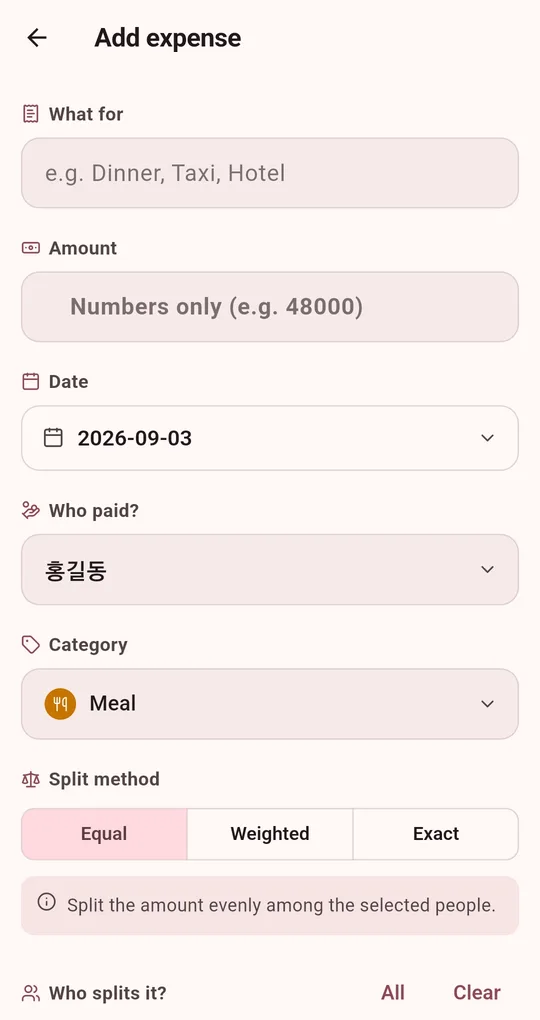
Category and memo on every expense
On the add expense screen in the Android app "Settle Up: Split the Bill", choose a category such as Meal, Cafe, Transport, Stay or Shopping, and add a memo if needed. The date can be set to when the expense happened.
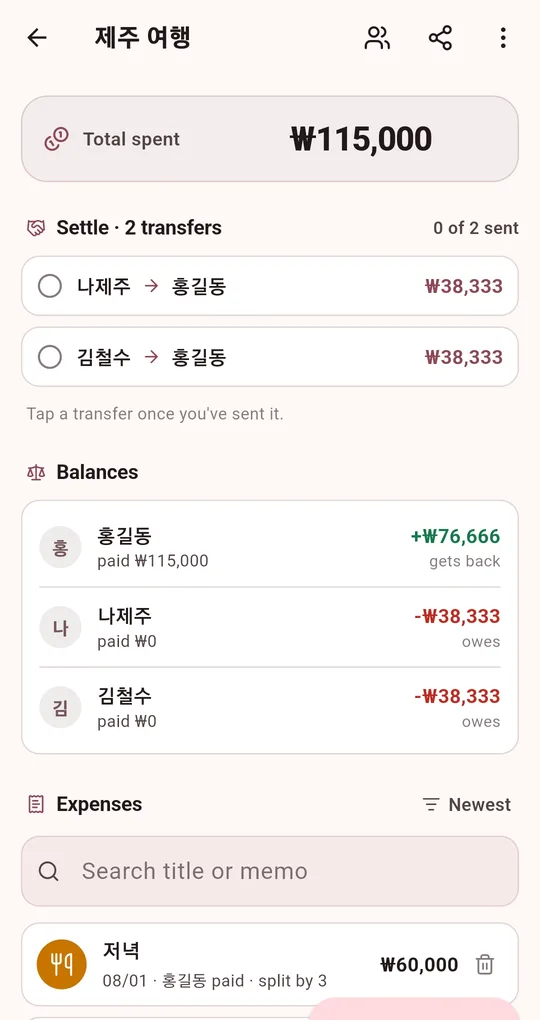
Search, filter and stats
On the group screen you can search titles and memos, filter by category and sort by date or amount. View stats in the menu shows spending by category, payments by member and the average expense (unlocks after one short ad).
Export as CSV
From the share icon, choose Export as CSV (Excel). The file has date, item, category, payer, amount, number sharing and memo, followed by the settlement. It is saved so that non-English text displays correctly in Excel.
FAQ
Can I back up all groups at once?
Backup / Restore in Settings exports every group to one .settlebak file. That file is for restoring in the app; the per-group CSV is the one to open in a spreadsheet.
Can I hide finished groups?
Long-press a group in the list and choose Archive. Unarchive brings it back.
Settle Up: Split the Bill
No sign-up, no internet, and your records stay on your phone. Free on Android.