Why a daily chart often fails
| Daily routine chart | Weekly timetable | |
|---|---|---|
| Shape | One day, top to bottom | Days x hours grid |
| Day-to-day differences | Hard to show | Each day can differ |
| Fixed commitments (camp, lessons) | Look like every day | Only on their days |
| What you see at a glance | The flow of a day | The balance of a week |
A simple daily chart is still great for young children learning a routine. If the days differ, keep one daily chart for the routine and use a weekly timetable for the differences.
Making it together
- Fixed things first — wake-up, bedtime, meals, camp or care hours, lessons, family plans.
- Must-dos — summer reading, workbooks. Decide together whether that is a little every day or set days.
- Want-tos — let your child pick when to play, do sports or have screen time. Kids follow a plan more when some of it is theirs.
- Empty time — always leave unplanned free time.
For bedtime, see how much sleep kids need by age.
What makes a schedule stick
- Use your child’s words: “2 pages of math book” beats “math practice”.
- Revise it together after the first week; first drafts are almost always too full.
- Keep weekends open or family-only.
- Mark what went well and stop there. If the chart becomes a list of failures, kids learn to hate it.
Building and printing it in the app
Create a “Summer break” profile
In the Android app Weekly Timetable, add a profile for the break from the pencil icon; your school-term timetable stays separate. With two kids, make one profile each.
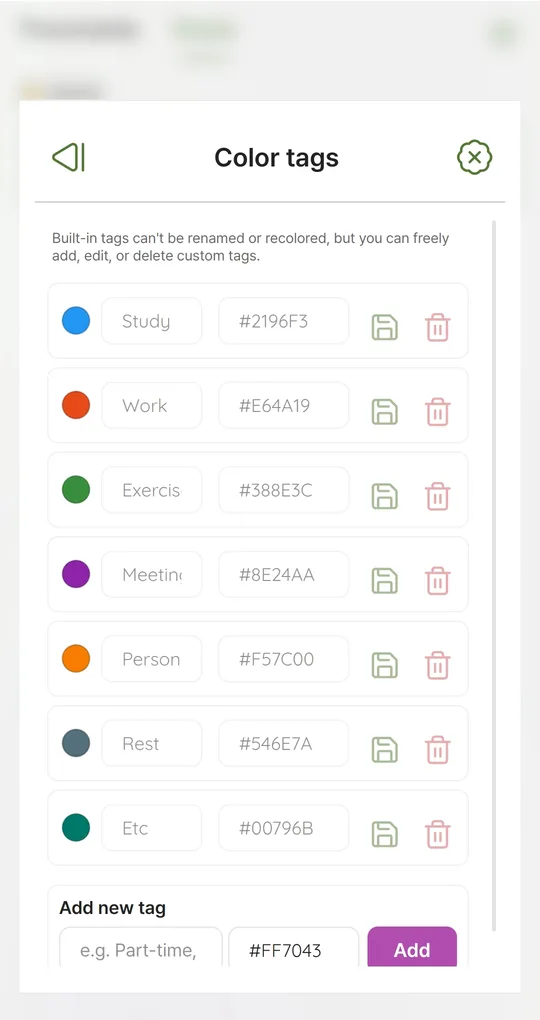
Make tags in your child’s words
Under Settings > Color tags, add tags such as “Homework”, “Play”, “Books” and “Camp” and pick colors. The seven built-in tags cannot be renamed, but your own tags can be added, edited and deleted freely.
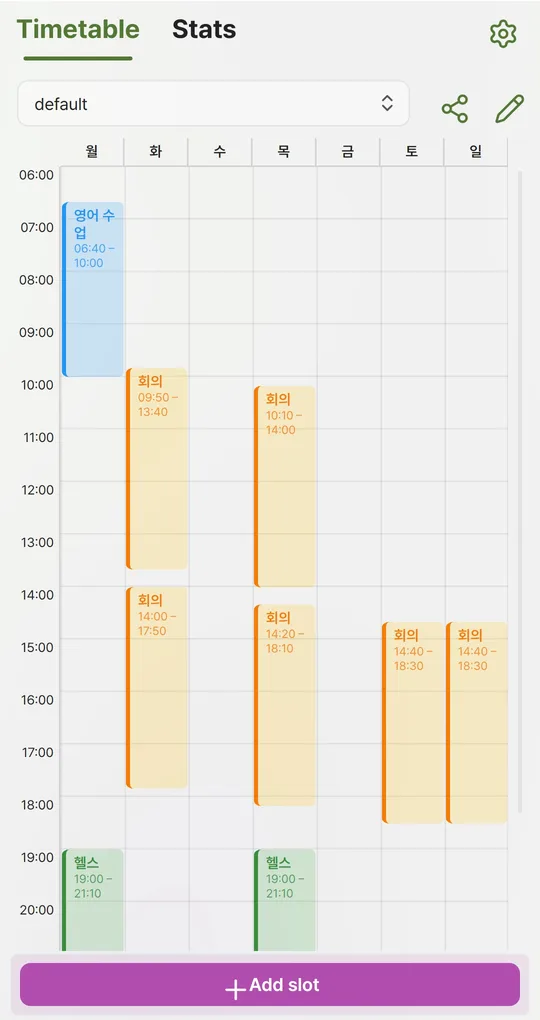
Same every day? Enter it once
For wake-up, lunch or reading time, select all days, or create one slot and long-press it for Copy to every day. Camp or lessons on specific days get just those days.
Save as PNG and print
The share icon saves the week as a PNG image file you can print. The image includes every slot, regardless of the Day start hour setting.
The screenshots were taken with Korean sample entries, so slot titles and some weekday labels appear in Korean; menus and buttons are in English.
FAQ
Can I put it on my child’s phone with reminders?
Reminders can be switched on in Settings, at the start or 5–60 minutes before a slot. For younger kids it is simpler to manage it on your phone and give them the printout.
Should I delete it after the break?
Keep the profile; next break you can edit it instead of starting over.
Weekly Timetable - Planner
No sign-up, works offline, and your timetable stays on your phone. Free on Android, in English and Korean.