Scanning with the camera
- Android — on many phones, pointing the camera at a QR code in photo mode shows a banner. Google’s own camera help says this works “only on selected devices”. If yours doesn’t, use Google Lens.
- iPhone — the built-in Camera shows a notification when it sees a QR code.
- QR in a photo — image search tools like Google Lens can read it.
Side by side
| Built-in camera | Google Lens | Scanner app | |
|---|---|---|---|
| Reads QR | Mostly | Yes | Yes |
| Product and parcel barcodes | Depends on phone | Turns into a search | Shows the number |
| See content before opening | Tap the banner first | Shown on screen | Shown on a result card |
| History | None | Mixed into search history | History and favorites |
| Wi-Fi and contact codes | Mostly | Yes | Yes, copies the password |
| Make a QR code | No | No | Depends on the app |
When an app helps
- Reading product barcodes as numbers, or counting many of them
- Finding again the coupon, parking or Wi-Fi code you scanned last week
- Pulling up a loyalty card barcode you show often
- Making a code for your shop, business card or guest Wi-Fi
How to pick one
In its January 2022 alert on QR code tampering, the FBI’s IC3 advised people to avoid downloading a standalone QR scanner app, because malicious apps had posed as scanners. If you do use one, check these.
| Check | Good sign |
|---|---|
| Permissions | Camera, roughly. Walk away if it wants contacts, SMS or call logs |
| Links | Shows the address first instead of opening it |
| Where scans are kept | On the device, not a server |
| Account | Works without signing up |
The Android app QR & Barcode Scanner keeps scans and settings on the device only and has no account. It uses the internet permission to show ads.
Scan and find it later
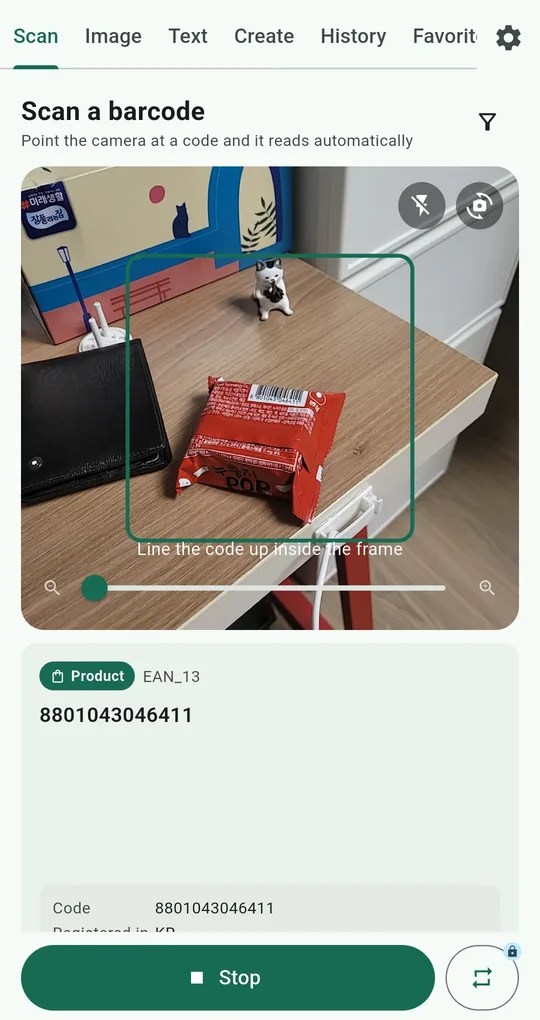
Point the Scan tab
Open the app and line the code up inside the frame. It reads automatically. The funnel icon at the top right is the Format filter: pick QR / 2D only or Product (1D) only so a crowded shelf doesn’t give you the wrong code.
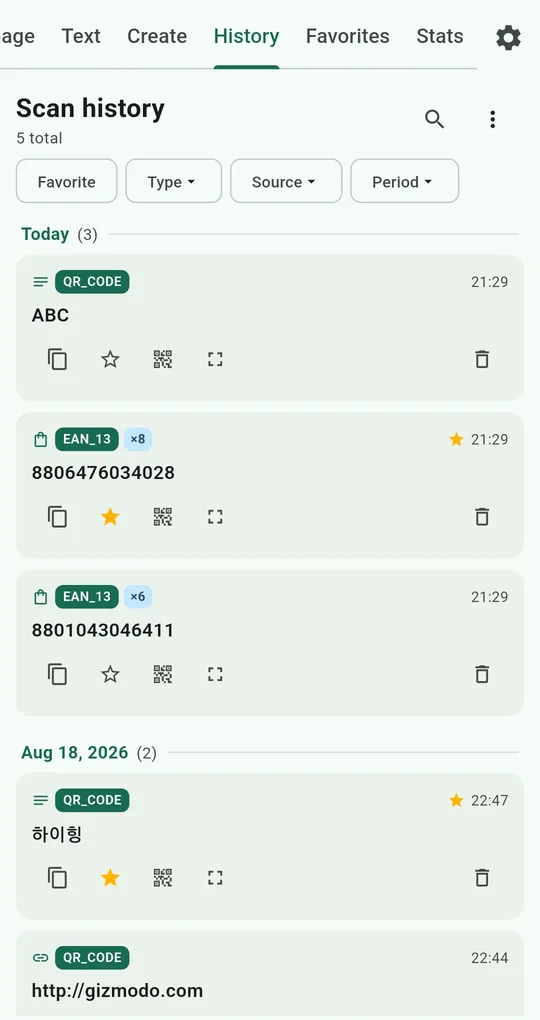
Find it again in History
Everything you scan lands in the History tab, grouped by day. Use the search box and the Favorite, Type, Source and Period filters, and star codes you use often to move them to Favorites. Scanning the same value again bumps a counter instead of adding a new row (you can turn Merge duplicates off in Settings).
FAQ
What’s free?
Scanning, image scanning, text recognition, creating and copying are never locked. History keeps the latest 200 scans and Favorites holds 20 for free; watching one ad lifts each limit.
Does it work offline?
Scanning and history work on the device. Opening a link or searching for a product needs a connection, of course.
QR & Barcode Scanner Reader
No sign-up, and your scans stay on your phone. Free on Android.