Planned route vs actual route
Before you leave, a route is for planning cities and transport, and map apps or spreadsheets work well. After you come back, the route worth keeping is the order you actually entered each country. Plans change on the road, so copying the original plan gives you a map of a trip you did not take.
The line follows your dates
A route map connects countries in order of your entry dates. Wrong dates mean the line zigzags in odd directions.
- While traveling, at least note the day you entered each country. Cities and details can wait.
- A quick long-press saves a country with that day’s date. Open the record and change it to the real entry date for countries on your route.
- If you crossed two borders in one day, check which came first and set the dates to match.
- If you have forgotten dates, see where to find old trip dates.
What about transit countries?
Including every airport where you changed planes makes the route messy. Mark those as transit and leave them out when viewing. For what counts as a visit, see how to count countries.
Turning on the route line
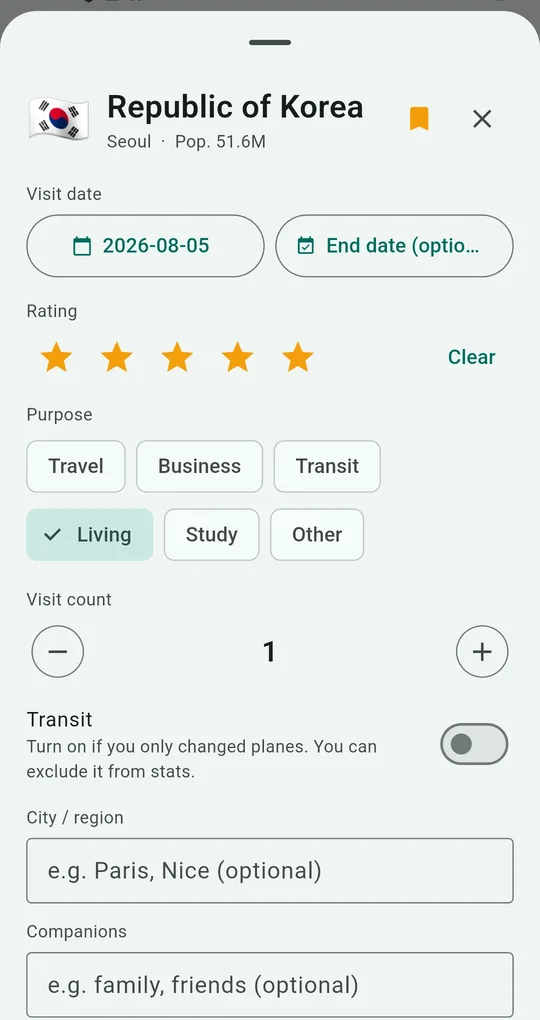
Enter a date for each country
Tap a country and set the visit date. If you only changed planes there, turn on the Transit switch.
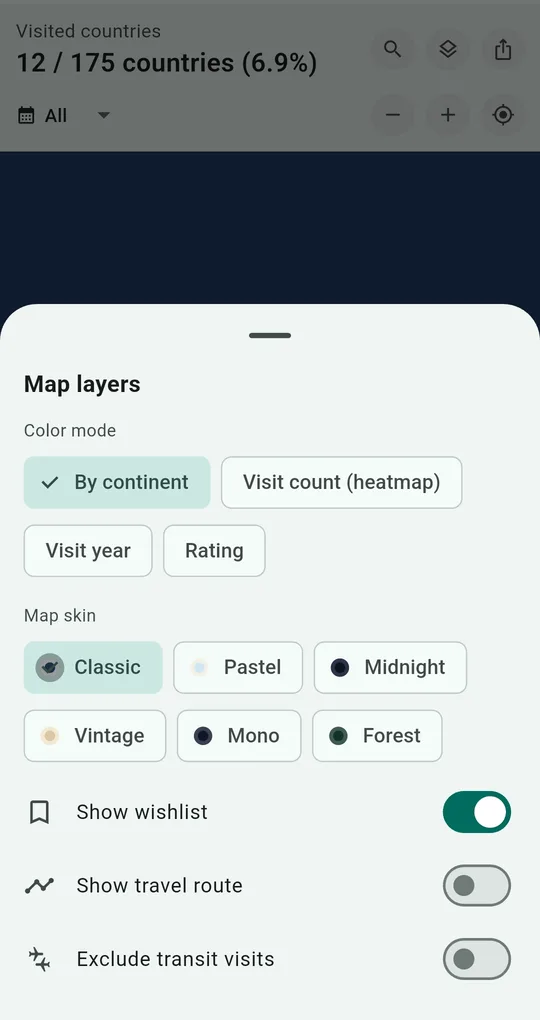
Turn on Show travel route
Turn on Show travel route in map layers and a line is drawn across the map in visit order. It unlocks for good after one short ad. Exclude transit visits in the same panel hides transit countries.
Save the route map
Use the share button at the top right of the map to save the map with its route as an image. It works well as the cover or last page of a trip journal.
FAQ
The line connects countries in a strange order.
It is almost always the dates. Sort History by newest and check that the dates match the order you actually traveled.
Does it draw routes between cities within a country?
No, the route line connects countries. Keep cities in the city / region field of each record.
Travel Map: Visited Countries
No sign-up, and your records stay on your phone. Free on Android.